Every domain you register or transfer to Digipacket appears in your control panel as soon as the order is placed. Each domain has two pages: an overview of the domain itself, and a service page where its actions are.
Open the list of your domains
- Sign in at digipacket.net/login with the email address and password on your account.
- In the sidebar, under My services, click Domains.
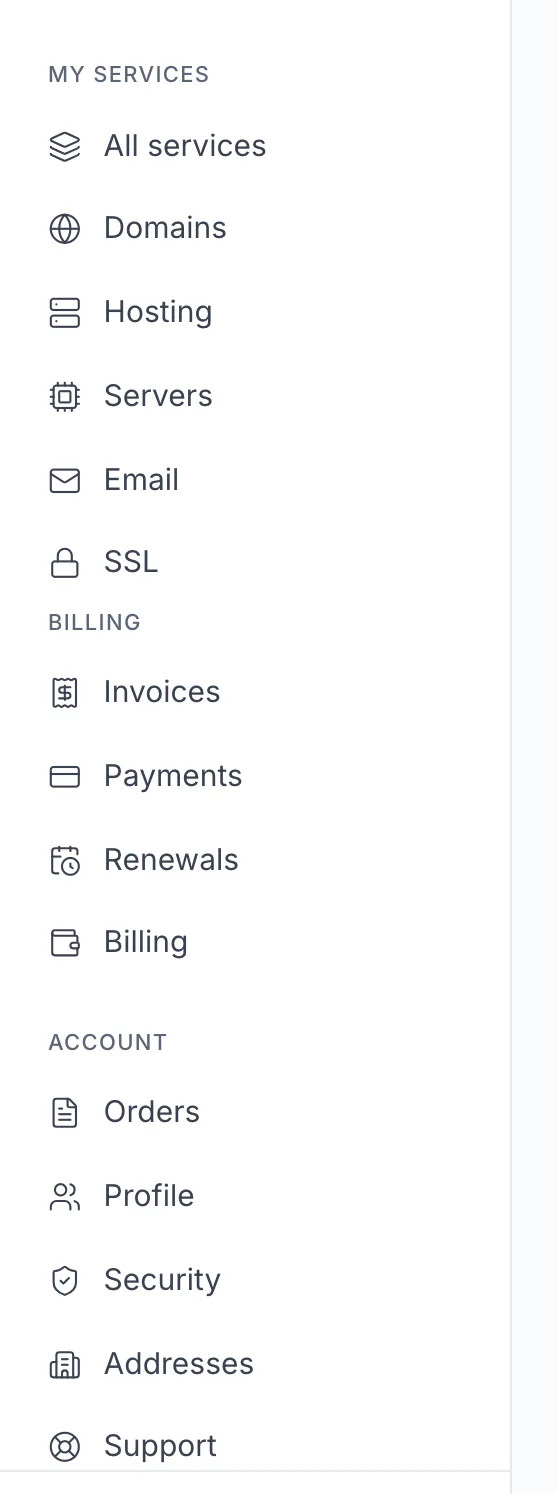
The sidebar is the same on every page of the control panel. - Your domains are listed with their status and expiry date. Click a domain name to open it.
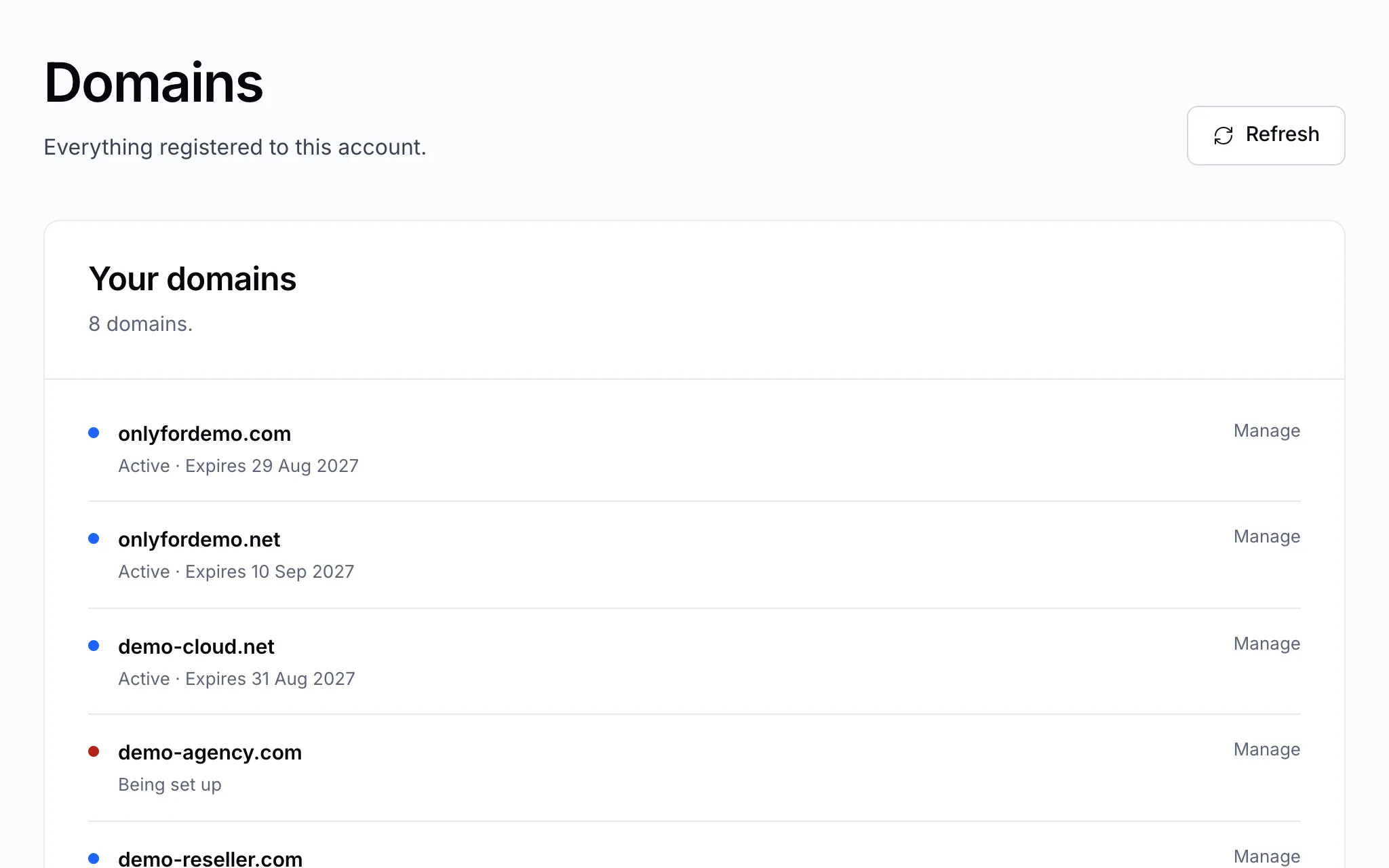
Each row opens the domain's overview.
Tip
Looking for one domain among many? Type part of the name in the search field at the top of any control panel page. It also finds invoices and sections of the panel.
The domain overview
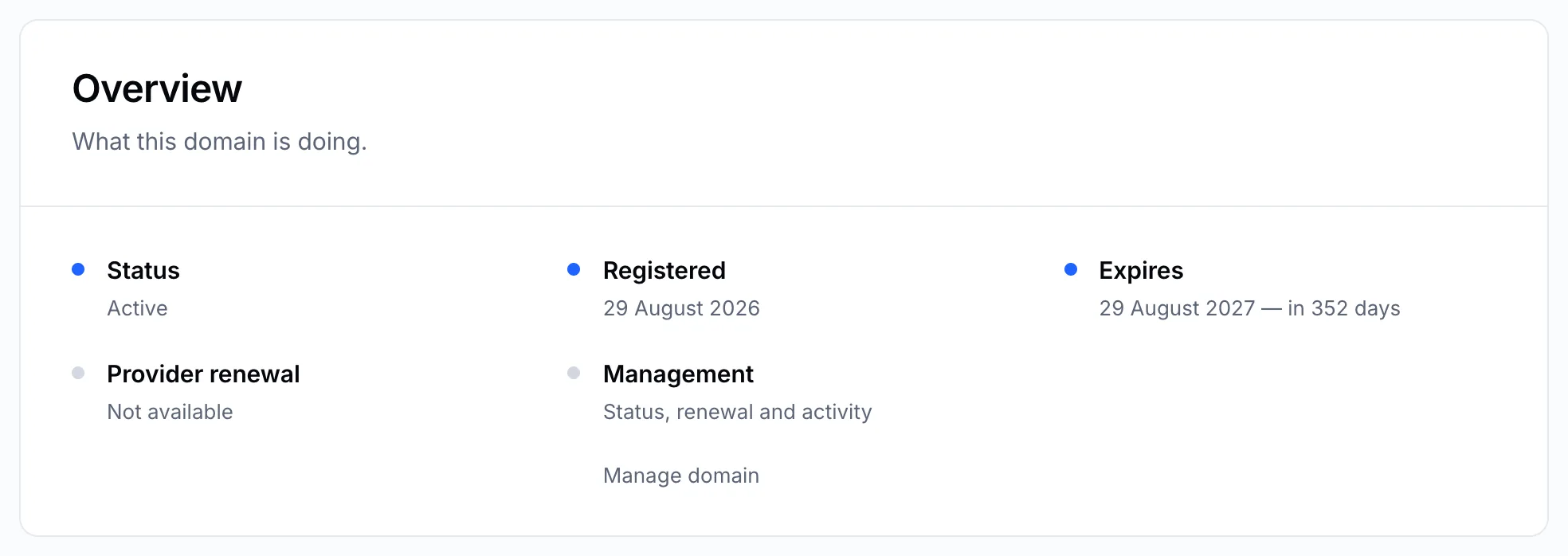
The overview shows what the domain is doing right now: its status, when it was registered and when it expires.
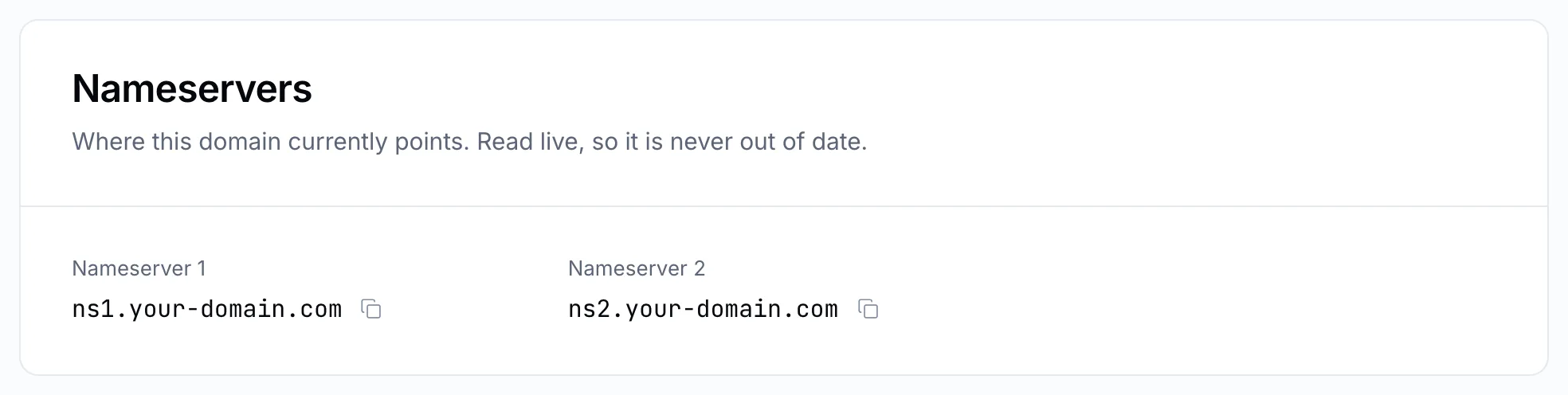
Below it, Nameservers shows where the domain points. These are read live from the registry each time the page opens, so they are never out of date.
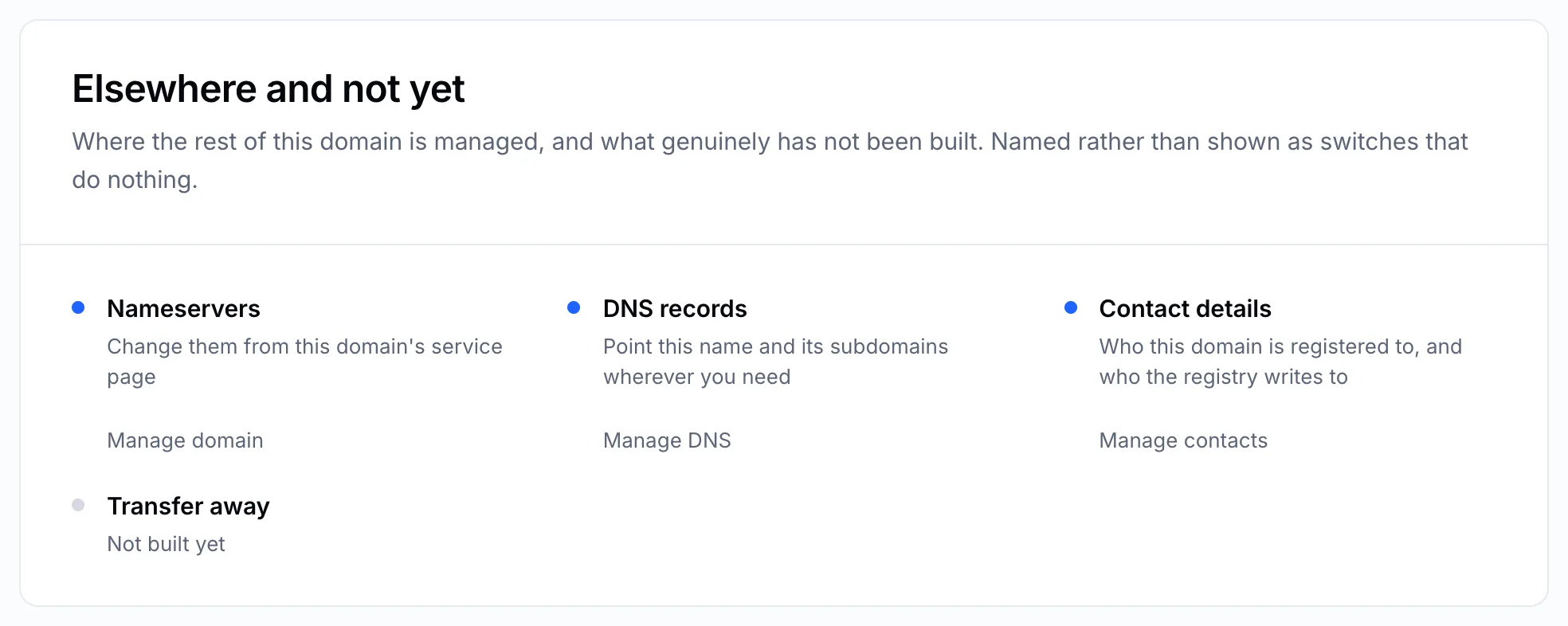
The last panel links to the rest of the domain's settings:
| Link | What it opens |
|---|---|
| Manage domain | The service page, with the actions below |
| Manage DNS | The domain's DNS records — see Manage your DNS records |
| Manage contacts | The four contacts registered on the domain — see Edit your domain's contact details |
The service page: actions
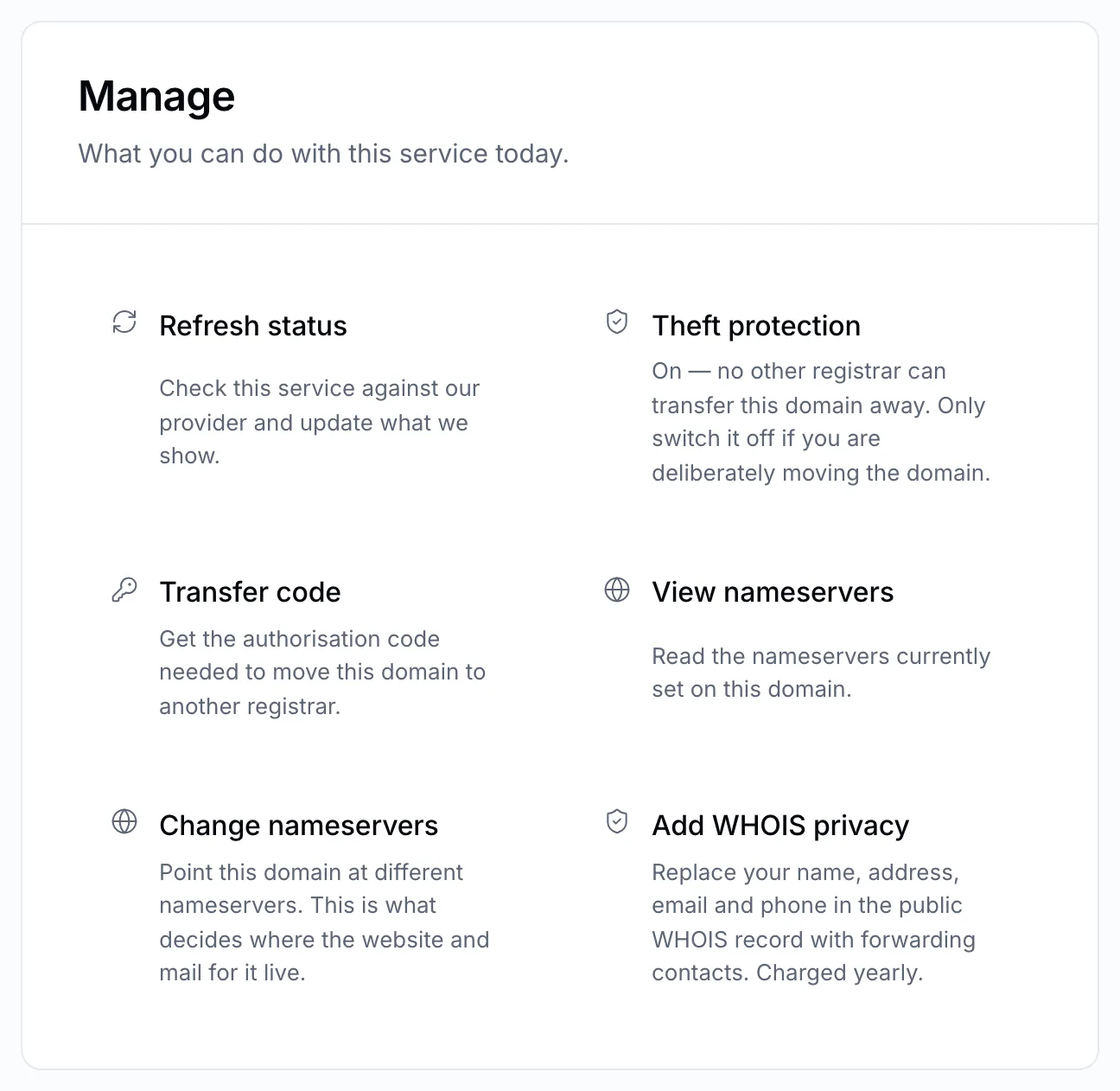
Click Manage domain to open the service page. The Manage panel lists what you can do with this domain today.
| Action | Guide |
|---|---|
| Refresh status | Checks the domain against the registry and updates what the panel shows. |
| Theft protection | Theft protection |
| Transfer code | Get your transfer code |
| View nameservers | See which nameservers a domain uses |
| Change nameservers | Change your domain's nameservers |
| Add WHOIS privacy | Hide your details with WHOIS privacy |
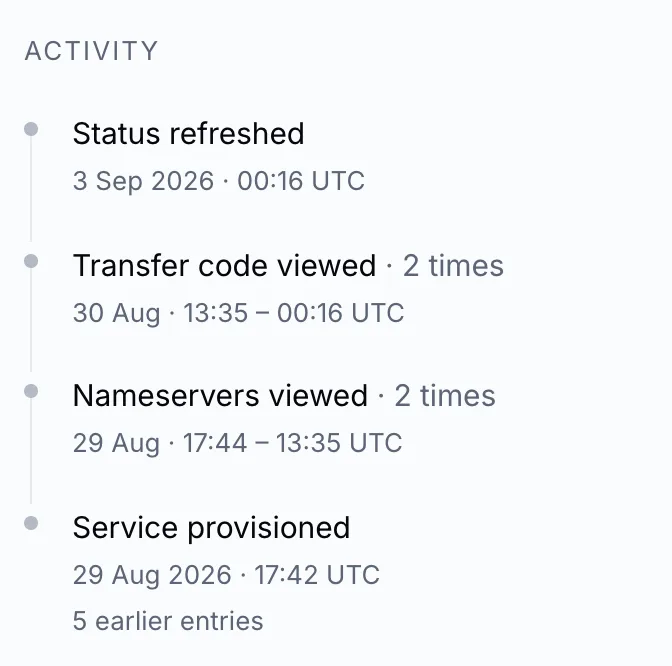
On the right, Activity records everything done to the domain from your account, with the date and time — useful when several people share one account.