Skip to content
Sign In Create account

Your account

Change your name, phone, company or email address

Update the details on your account, and confirm a new email address.

1 min read Updated

Open Profile in the sidebar.
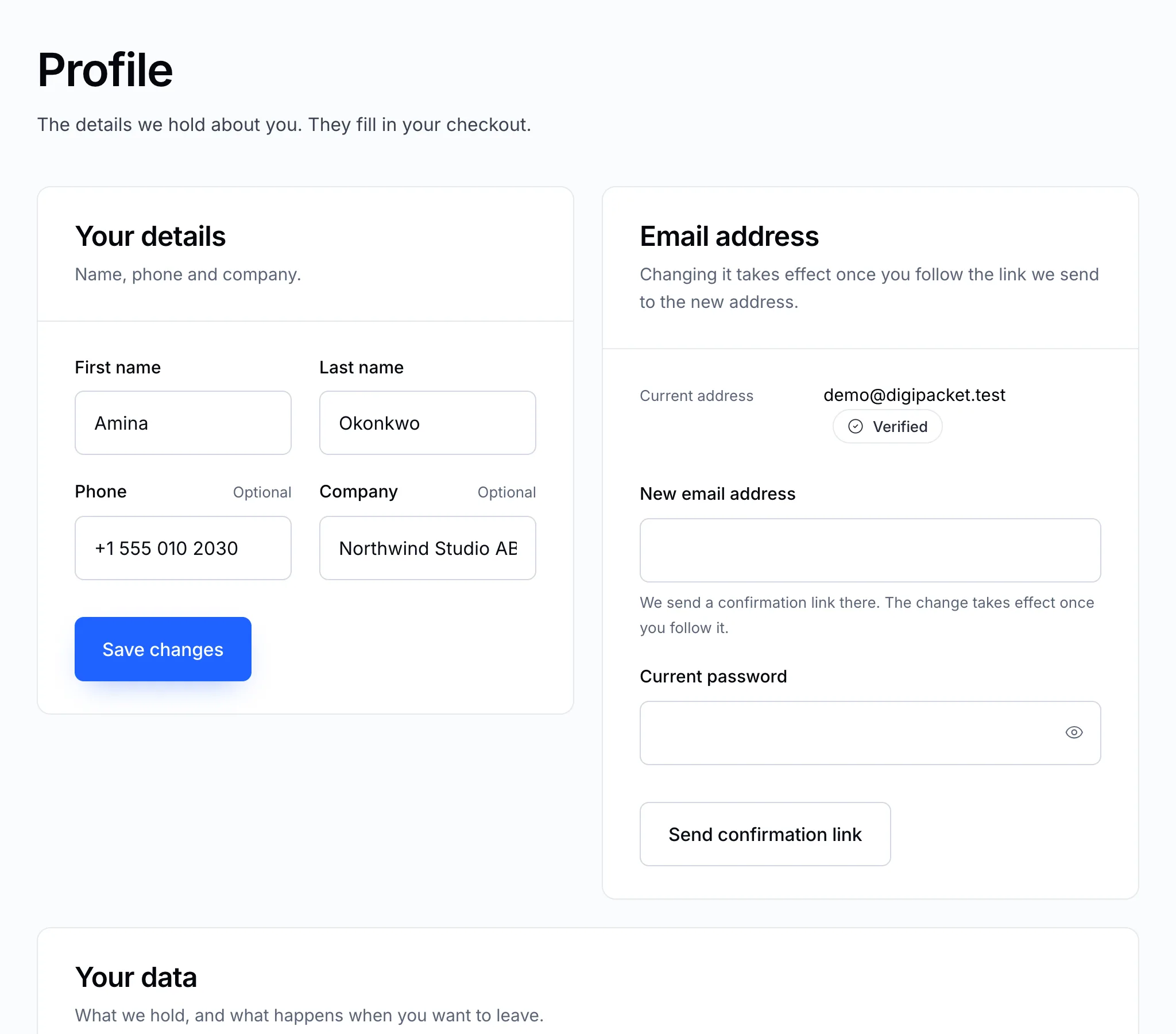
The Profile page

Your name, phone and company

Edit the fields under Your details and click Save changes. They fill in your next checkout.

Your email address

The email address is where invoices, notifications and password resets go, and it is how you sign in.

  1. Under Email address, type the new email address.
  2. Enter your current password — it proves the request is yours.
  3. Click Send confirmation link.
  4. Open the email sent to the new address and follow the link.

Until you follow the link, the old address stays in use. A link that is never followed changes nothing.

Note

Your account details and your domains' contact details are separate. Changing your account email doesn't change the registrant email on your domains — see Edit your domain's contact details.

Still stuck?

Open a ticket from your control panel and say which step you reached. A screenshot of what you see is the fastest way to show us.

Still stuck

Nothing here fits? Write to us.

Tell us what you are trying to do rather than what went wrong, and we will tell you whether it is something we can fix from here.

  • Answered by a person

    There is no ticket robot in front of us. What you write is what somebody reads.

  • Say what you are trying to do

    The fastest answers come from the message that explains the goal, not only the error.

  • Your services are already in front of us

    Sign in first and we can see the account the question is about without asking you to describe it.