Skip to content
Sign In Create account

Your account

Change your password and sign out other devices

Set a new password, see where the account is signed in, and end every session at once.

1 min read Updated

Open Security in the sidebar.
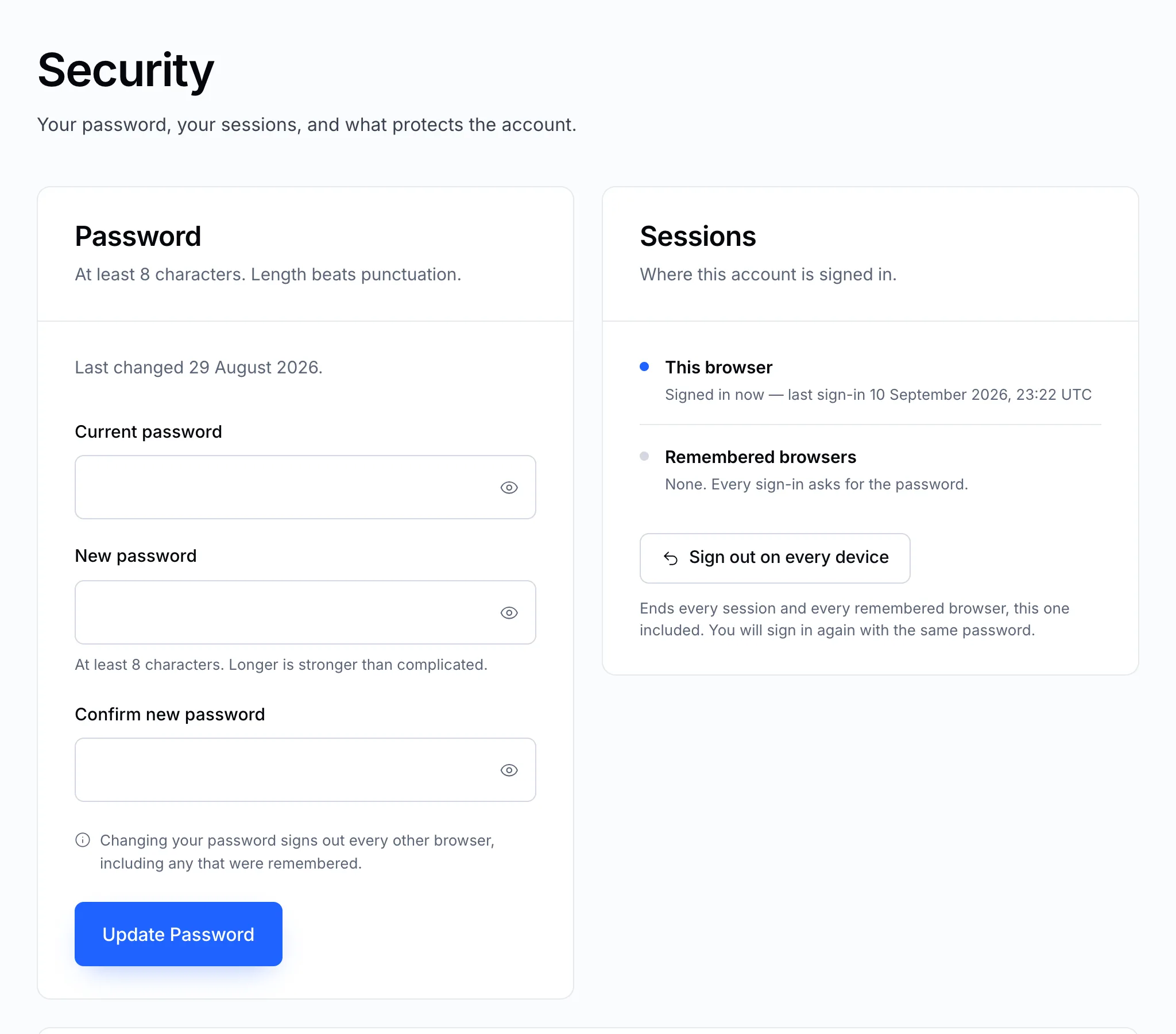
The Security page
Password on the left, sessions on the right.

Change your password

  1. Enter your current password.
  2. Enter the new password twice. At least 8 characters — a long phrase is stronger than a short jumble.
  3. Click Update Password.

Changing the password signs out every other browser, including any that were remembered with Keep me signed in. The browser you're using stays signed in.

See where you're signed in

Sessions shows this browser and any remembered browsers — those that can get back in without the password.

Sign out everywhere

If you think someone else has used your account, or you signed in on a computer that isn't yours:

  1. Click Sign out on every device.
  2. Sign in again with your password — every session, this one included, has ended.
  3. Change your password straight after.

Tip

Use a password you don't use anywhere else. A password manager makes that easy.

Still stuck?

Open a ticket from your control panel and say which step you reached. A screenshot of what you see is the fastest way to show us.

Still stuck

Nothing here fits? Write to us.

Tell us what you are trying to do rather than what went wrong, and we will tell you whether it is something we can fix from here.

  • Answered by a person

    There is no ticket robot in front of us. What you write is what somebody reads.

  • Say what you are trying to do

    The fastest answers come from the message that explains the goal, not only the error.

  • Your services are already in front of us

    Sign in first and we can see the account the question is about without asking you to describe it.