Skip to content
Sign In Create account

Getting started

Change your control panel password

Set a new cPanel or Plesk password from your Digipacket account.

1 min read Updated

Use this when you've forgotten the cPanel or Plesk password, or want to change it.

  1. Open Hosting in the sidebar, click the package, then Manage service.
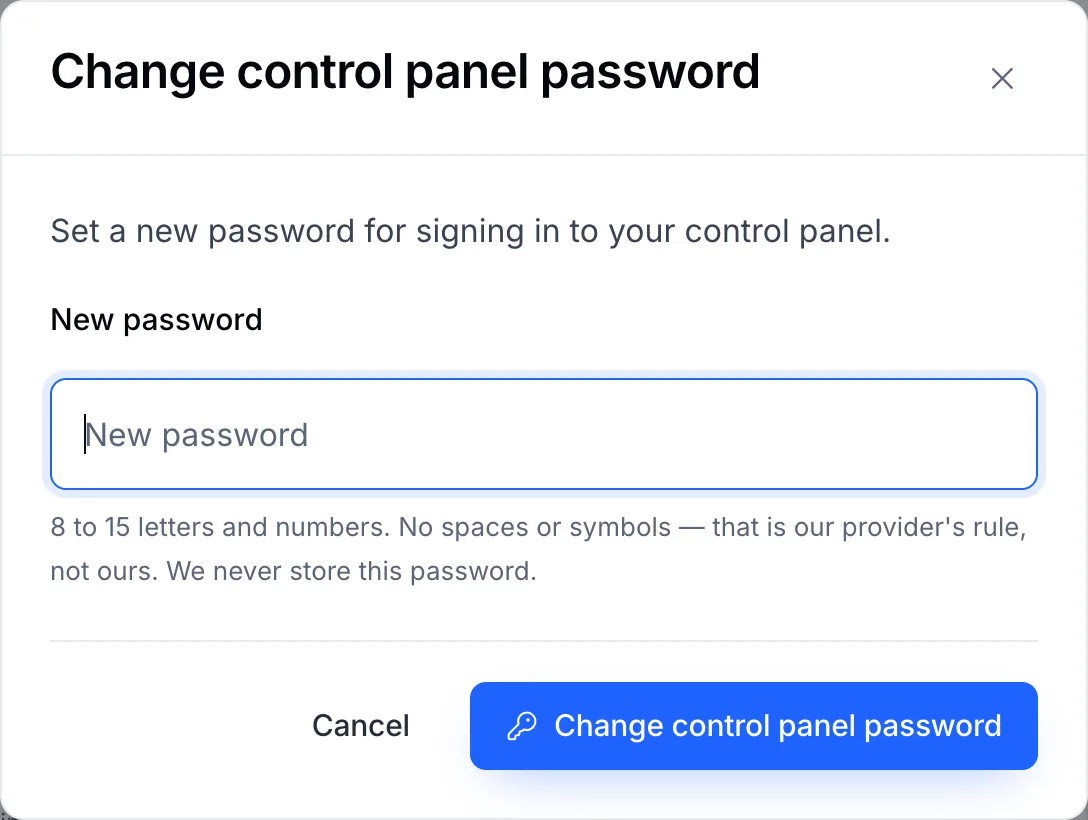
  2. Click Change control panel password.
  3. Type the new password.
    The Change control panel password dialog
  4. Confirm. The new password works straight away.

Note

This password is for the hosting control panel only. It doesn't change the password you use to sign in to your Digipacket account — that is under Security. See Change your password and sign out other devices.

Tip

FTP accounts you created yourself inside cPanel or Plesk keep their own passwords. Change those in cPanel or Plesk.

Still stuck?

Open a ticket from your control panel and say which step you reached. A screenshot of what you see is the fastest way to show us.

Still stuck

Nothing here fits? Write to us.

Tell us what you are trying to do rather than what went wrong, and we will tell you whether it is something we can fix from here.

  • Answered by a person

    There is no ticket robot in front of us. What you write is what somebody reads.

  • Say what you are trying to do

    The fastest answers come from the message that explains the goal, not only the error.

  • Your services are already in front of us

    Sign in first and we can see the account the question is about without asking you to describe it.