Your hosting is managed in two places:
- Your Digipacket control panel — billing, renewals, the domain the hosting serves, and the actions on this page.
- The hosting control panel — cPanel on Linux hosting, Plesk on Windows hosting. This is where your website's files, databases, email accounts and backups live.
Open it
- In the sidebar, click Hosting, then the hosting package.
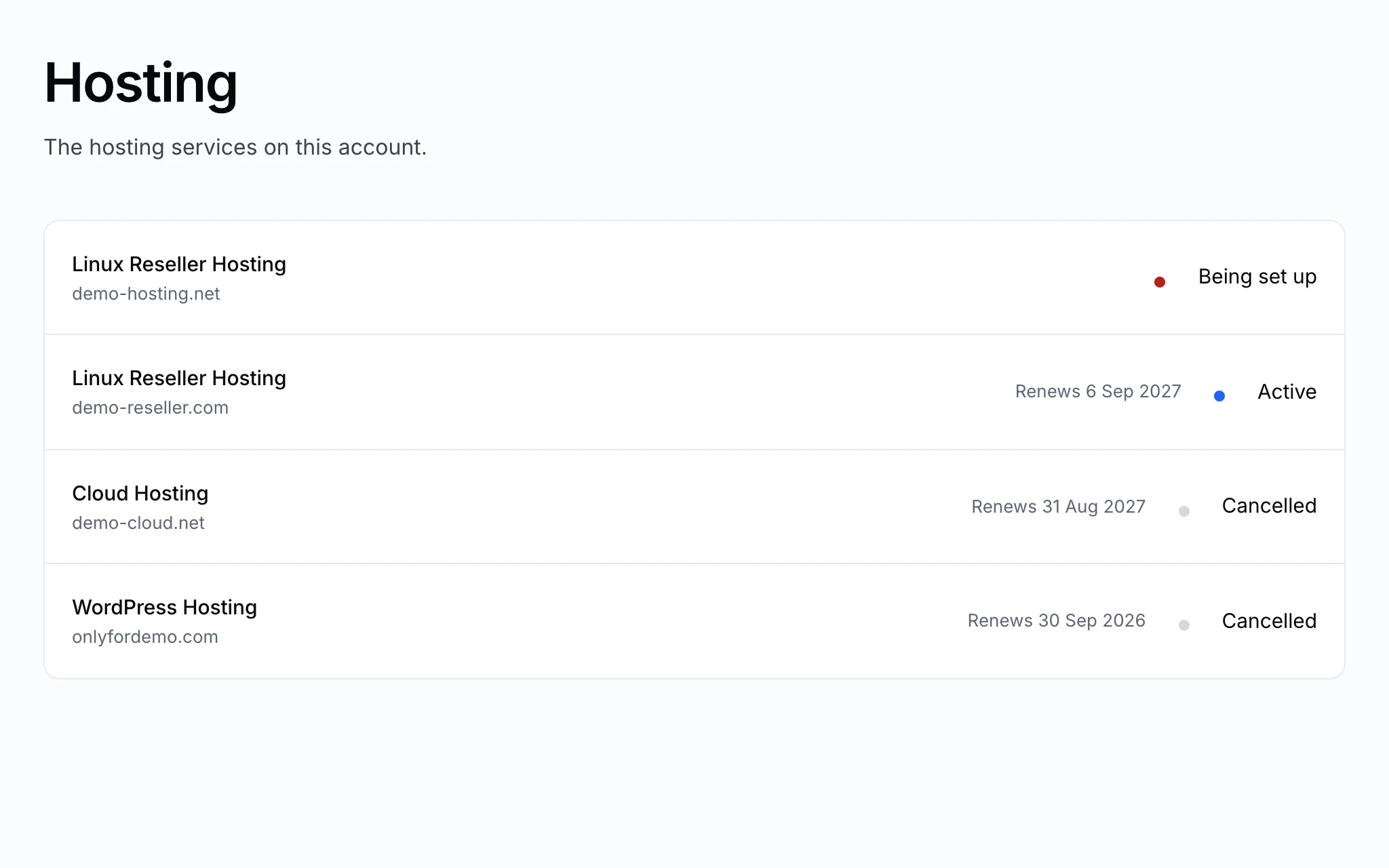
- Click Manage service to open the service page.
- In the Manage panel, click Open control panel.

The panel opens in a new tab. Depending on the package, you are either signed in automatically, or asked for the control panel username and password — the tile tells you which before you click.
Note
A package that is still being set up has no control panel yet. It is usually ready within minutes of payment; you'll get a notification when it is.
Can't sign in to cPanel or Plesk?
Set a new control panel password from your Digipacket account — see Change your control panel password. The username is shown under Connection details.